

Did you know 83% of data breaches start with someone seeing information they shouldn’t? Your sensitive customer records, financial data, and private employee details are constantly at risk.
In today’s complex data infrastructure, a single gap can expose everything. That’s why row-level security is essential for protecting sensitive information from unauthorized users inside your own organization.
This approach uses filters to restrict what each person can see. For example, in the Power BI service, these rules only apply to users with Viewer permissions. Admins, Members, and Contributors bypass them entirely.
You must build clear boundaries into your database architecture. It prevents team members from viewing rows they are not authorized to see. Effective data access management stops leaks before they happen.
Protecting your information starts with understanding these controls. Are you ready to lock down your private records?
Understanding the Foundations of Row-Level Security
The core principle is simple: not everyone in your organization needs to see every row of data. Building a strong foundation means knowing how to filter information at its source.
This is where granular control systems come into play. They create personalized views for each user.
Defining RLS and Its Importance in Data Protection
Row-level security is a dynamic filter. It restricts what a person sees based on who they are. For example, a sales rep views only their client rows.
This is crucial for data security. It ensures private records stay hidden from unauthorized eyes. Tools like Sigma support both RLS and column-level security for complete protection.
Core Concepts in Table-Level and Column-Level Data Filtering
How does this differ from other methods? Column-level security locks down an entire column of data for all users.
In contrast, row-level security is more precise. It protects specific rows based on values like a user’s region or ID. You define a rule in a column, and the filter applies automatically.
Understanding both approaches gives you complete control over your table and column access. It’s the bedrock of trust in your data systems.
Architecting Secure Data Models for Robust Control
Think of your data model as a vault: its design determines who can access which compartments of your valuable information.
You build this protection directly into your architecture. In Power BI Desktop, you configure row-level security for imported data models. For semantic models using DirectQuery—like SQL Server—you set up these same dynamic filters. This places control at the source.
Your table relationships are the wiring of this system. They must be configured correctly. Proper links ensure your filters work as intended, guiding data to the right people.
When you publish your model, all role definitions travel with it. Your security architecture stays consistent from Desktop to the Power BI service. There’s no gap for unauthorized eyes to slip through.
A well-designed model enforces rules at the data level, not just in reports. This stops leaks before they can start, locking down sensitive information where it lives.
Implementing row-level security with Best Practices for Secure Data
A single misconfigured filter can become the backdoor that exposes your entire dataset to unauthorized eyes. Your defense lies in a set of disciplined, proven methods.
You must anchor your policies directly to the source. Never use a separate column or table as a control switch for row-level security. Why? Those values can be changed.
Instead, apply your filter logic straight to the role definition. This creates a tamper-proof rule that travels with your model.
Following these best practices helps you sidestep common pitfalls. It stops sensitive details from leaking into the wrong reports.
Consistency is your shield. Apply the same rigorous practices across every dataset in your environment. This systematic approach slashes the risk of exposure.
| Common Pitfall | Recommended Practice | Primary Benefit |
|---|---|---|
| Using a modifiable table column as a security switch | Embed filter logic directly in the role definition | Eliminates tampering risk |
| Relying on visual-level filters in reports | Enforce rules at the semantic model level | Protection travels with the data |
| Applying rules inconsistently across different data sources | Establish a centralized, reusable security policy | Reduces configuration gaps and errors |
| Granting broad viewer permissions during testing | Use the “View as Role” feature with specific test accounts | Validates user experience without exposing live data |
This framework locks down access at the foundation. It ensures your data remains compartmentalized, visible only to the right people.
Configuring Roles and Dynamic Filters in Power BI Desktop
The Manage Roles window is your command center for building personalized data views for each user. This is where you translate your security policy into active rules that the system enforces.
You start in Power BI Desktop. Your goal is to define who can see which rows in every report.
Role Definitions in Power BI Desktop
Your first step is to navigate to the Modeling tab. Select “Manage Roles” to open the configuration window. Click “New” to create a fresh role.
You must give it a clear name. Avoid special characters like commas. A name like “LondonParisRole” will cause an error.
Next, you define the filter expression for each table. This expression must return a simple true or false value. It tells the system which rows a user in this role is allowed to see.
Switching Between Default and DAX Editors
Power BI Desktop offers two ways to write these filters. The default interface uses drop-downs for simple conditions.
For dynamic rules—like filtering by the logged-in user—you need the DAX editor. Toggle to it with a single click.
Here, you can use functions like username() or userprincipalname(). Any change you make in one editor persists when you switch back. This ensures your model logic stays intact.
Correctly setting up these roles is how you enforce row-level security. It puts a dynamic wall around sensitive information. Your data remains secure, granting access only to authorized people.
This process locks the filter directly into the data model. It travels with your dataset, providing consistent protection everywhere.
Securing Data in Live and DirectQuery Environments
In a DirectQuery setup, the Power BI service becomes a messenger, not a gatekeeper, for your data access rules. Your protection must be anchored in the source system itself.
When you use DirectQuery, Power BI sends a query to your underlying database. That source system then applies its own security roles and filters based on the user’s credentials. Your report merely displays the results it’s allowed to see.
For live connections to Analysis Services, the process is even more centralized. You cannot define roles within Power BI Desktop. The “Manage Roles” option simply won’t appear.
All row-level security must be configured directly in the on-premises semantic model. This means your database administrators and Power BI developers must work in tight coordination.
Securing information here requires a unified strategy. Both teams must agree on the rules that govern each user’s view of the data.
| Connection Type | Where Security is Defined | Where the Filter is Enforced |
|---|---|---|
| Imported Data | Power BI Desktop (Modeling tab) | Power BI Semantic Model |
| DirectQuery | Source Database (e.g., SQL Server) | Source Database at Query Time |
| Analysis Services Live | On-Premises Semantic Model | Analysis Services Instance |
This table shows the critical shift. For live and DirectQuery, your Power BI file contains no filter logic. The data source holds all the control.
Getting this right locks down sensitive information at its origin. It ensures consistent protection, no matter how the data is accessed.
Managing User Permissions and Access Structures
Effective data governance hinges on a clear separation between editors and viewers. You build this structure in the Power BI service by assigning people to specific roles.
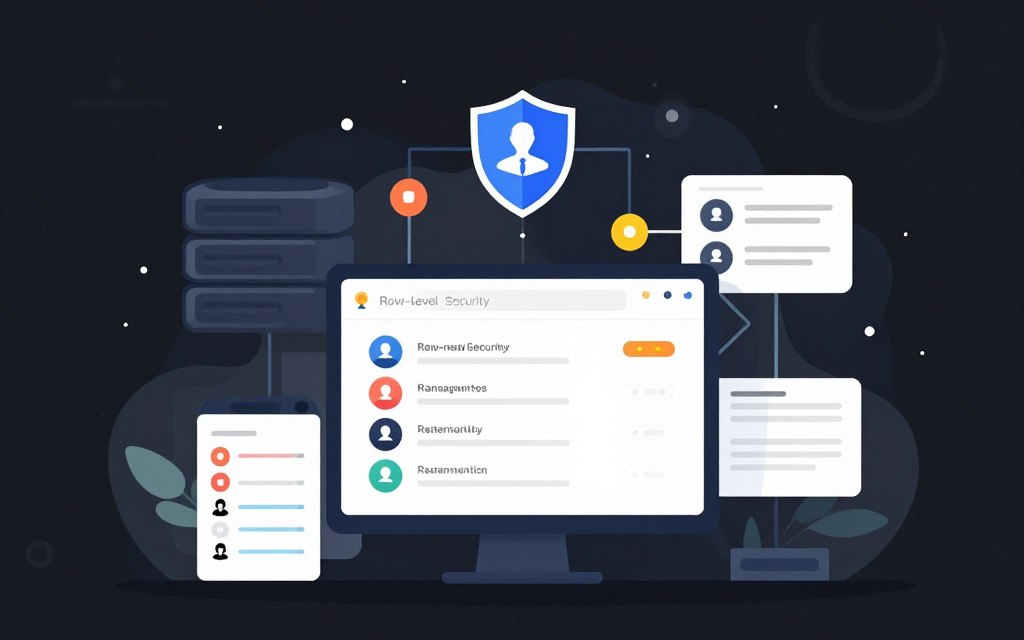
This is where your security policy meets your team. You add a member by typing their email address or name. Note that Microsoft 365 groups are not supported for roles.
Assigning Viewers and Contributors Effectively
The distinction is critical. Workspace Admins, Members, and Contributors have edit permission. Row-level security does not apply to them.
If you want these filters to apply, you must assign the person the Viewer role. You can see how many members are in a role by the number in parentheses next to its name.
Ensuring Dynamic User Filters for Accurate Data Access
Once assigned, the dynamic filter rules activate for that user. This ensures each person’s report shows only the data rows they are authorized to see.
Managing these user permissions locks down your data access structures. It keeps sensitive information secure and compliant with your internal policies.
Leveraging Advanced DAX Techniques for RLS
Mastering a few key DAX functions transforms static data filters into dynamic, user-aware security rules. This is the engine behind personalized report views.
Using username() and userprincipalname() Effectively
You build dynamic rules with username() or userprincipalname(). In Power BI Desktop, username() returns “DOMAIN\User”.
After you publish your model, both functions return the User Principal Name in the Power BI services. This shift is automatic.
Your filter expression compares this value to a column, like [UserEmail] = username(). It grants access to the correct row of data for each person.
Autocompletion and DAX Error Prevention Strategies
The DAX editor’s IntelliSense helps you write formulas. It suggests function names as you type, preventing syntax mistakes.
Always use commas to separate arguments, even if your locale uses semicolons. Also, avoid the USERELATIONSHIP() function in your rls expressions.
It can cause unexpected query errors. Following these steps ensures your modeling logic works flawlessly for all users.
| DAX Function | Behavior in Power BI Desktop | Behavior in Power BI Service | Key Consideration |
|---|---|---|---|
| username() | Returns format: DOMAIN\User | Returns User Principal Name (UPN) | Use for dynamic filters based on user identity. |
| userprincipalname() | Not typically used in Desktop | Returns User Principal Name (UPN) | Provides consistent UPN value in the cloud service. |
| IntelliSense | Autocomplete available in DAX editor | N/A (Editing done in Desktop) | Critical for error prevention during rule creation. |
Applying these techniques turns your data model into a smart system. It delivers secure insights tailored for every business user.
Integrating RLS in Tableau, Sigma, and Database Systems
Modern business intelligence tools like Tableau and Sigma offer powerful, built-in mechanisms for granular data control. Your protection strategy must extend beyond a single database. It needs to work across your entire analytics stack.
RLS Through Virtual Connections and Data Policies
Tableau provides a centralized method. Starting with version 2021.4, you can set up row-level security using data policies on virtual connections.
This feature requires Data Management to be enabled. You define a single, governing rule at the connection level. It then applies consistent filters to all workbooks using that source.
It streamlines your security management. You avoid recreating the same rls logic in every individual report.
Utilizing User Attributes and Team Membership for Security
Sigma takes a different, highly dynamic approach. It leverages the existing attributes and groups assigned to your users.
You use functions like CurrentUserAttributeText() to fetch a specific attribute value for the person viewing the report. For team-based security, the CurrentUserInTeam() function checks their membership.
This lets you build rules directly from your organization’s directory. Your data access automatically aligns with HR or IT structures.
Remember, many source databases have native data filtering. Integrating these systems creates a seamless shield. It protects sensitive information from source to insights, securing your business intelligence across all services.
Key Considerations and Limitations of RLS
Navigating the fine print of access control reveals critical scenarios where your filters simply won’t apply. Acknowledging these boundaries is essential for building a truly robust defense.
Your first major constraint is tool-based. You can define row-level security only on semantic models created within Power BI Desktop. If you originally set up roles and rules in the Power BI service, you must completely re-create them in Desktop. This is a foundational step for your project.
A critical limitation involves automation. Service principals cannot be added to an RLS role in Power BI. For apps using a service principal as the final identity, rls is not applied at all.
This can cause a report to appear broken for users without proper access. They might see errors instead of data.
Also, remember that RLS governs rows, not objects. You cannot use it to limit the columns or measures your team can see. That level of control requires object-level security.
Understanding these specific requirements and gaps is non-negotiable. It ensures your data infrastructure projects meet your organization’s strict security needs.
Testing and Validating RLS Configurations
Before you roll out any new access rules, you must prove they work as intended—every single time. Your entire data protection strategy hinges on this verification step.
How can you be sure each person sees only their authorized rows? The Power BI service provides a critical simulation tool called “Test as role”.
Best Practices for the Test as Role Feature
You use this feature to view a report as a specific person or a combination of roles. It’s your sandbox for validating filters before deployment.
First, a key limitation: you can only test reports located in the same workspace as your semantic model. Also, dashboards are not available for this test option.
Not all report features can be validated. Q&A visualizations and Copilot might not reflect the rls rules correctly during this simulation.
For DirectQuery models with Single Sign-On enabled, the “Test as role” feature does not work. Your security must be confirmed at the source database in these cases.
| Component to Test | Supported in Test as Role? | Key Consideration |
|---|---|---|
| Reports in Same Workspace | Yes | Primary method for validating user views. |
| Dashboards | No | Cannot be simulated; requires manual user testing. |
| DirectQuery with SSO | No | Filters are enforced at the source; use database tools. |
| Q&A & Copilot Visuals | Limited | May not apply row-level security consistently in the test view. |
Always perform thorough testing. This final check ensures your rules deliver accurate, secure insights to every business user.
Final Strategies for Locking Down Your Database Securely
True data protection is a living process, not a one-time configuration you can set and forget. Your final defense layers row-level controls with other core practices.
You must regularly audit user access and roles. This ensures permissions match current business needs. Continuously validate your data-based filters and rules.
This consistent discipline builds a robust infrastructure. Your sensitive information stays secure. Authorized users get the insights they need, and nothing more.